Crew guide
How crew members see their assigned rides and record each step of a ride in the crew app.
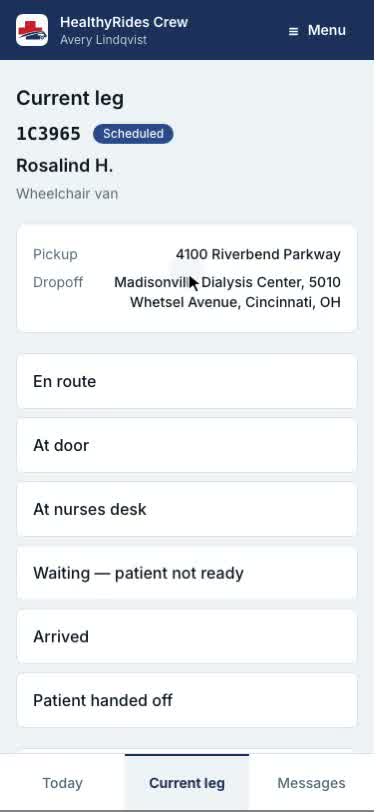
The crew app is where you see the ride you are on and record each step as it happens. It is a stand-alone app at /crew, separate from the facility and provider screens, and it is built for a phone or a tablet in the vehicle: one column, large buttons, and one thing to do at a time. Its bar at the top holds the HealthyRides mark, your name and the unit you are on, and a Menu button.
You see the crew app if you sign in with the crew role and your provider has put you on its roster. Crew do not see the facility or provider screens, such as the dashboard, the Available board or reports.
Transcript
Loading the transcript…
Walkthrough
-
Sign in with the account your provider's admin set up for you. If you have no account yet, ask your provider admin to invite you (see Get started).
-
Open the crew app at
/crew. You land on Current leg, the earliest ride you have not finished. -
Check the pickup, the dropoff and the requirement line under the ride reference.
-
Record each step with the buttons below. See Punches.
-
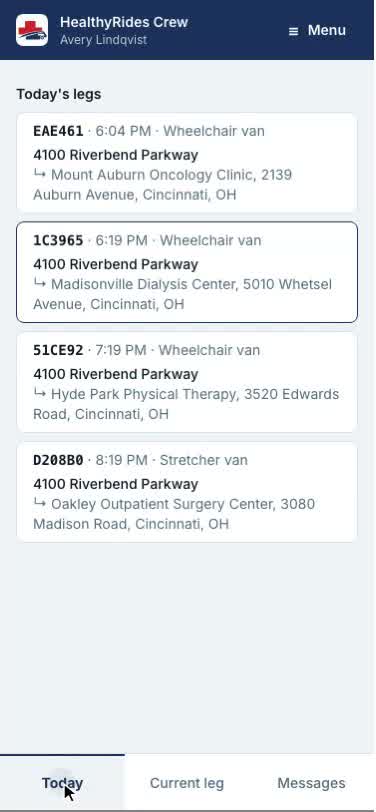
To work a different ride, tap Today in the bar at the bottom of the screen, then tap the ride. It becomes the current leg. On a wide screen, such as a tablet held sideways, Today's legs sit beside the current leg.
-
When you close a leg, it stays on screen so you can see it close. Tap the next leg in the list to move on.
If no ride is assigned, the screen reads No leg assigned. You are on standby. A dispatcher assigns your next leg, and it appears here.
Signing in
When nobody is signed in on the phone or tablet, the crew app asks you to sign in before it shows any ride. Tap Sign in and sign in with your own work account. You come straight back to the crew app, and the bar at the top names you. If you open a link to the crew app while signed out, you sign in first and then land on the page the link was for.
Transcript
Loading the transcript…
What the fields and statuses mean
- Ride reference is a short code such as A1B2C3. It is the name of the ride everywhere in HealthyRides.
- Status badge shows where the ride stands, such as Scheduled or In Progress.
- Requirement line lists what you are carrying, separated by dots: the tier, oxygen with its rate, attendants, equipment, weight-bearing, mobility, wheelchair and comments to crew. A part that does not apply is left out.
- Pickup is the address, followed by the entrance or saved pickup point when there is one.
- Pickup room and Dropoff room show the floor or room. They appear only when the facility entered one.
- Dropoff is the destination address.
- Wait clock appears only while a patient-not-ready wait is running. See The wait clock.
- Today's legs lists your rides for today, earliest pickup first, with the current leg marked. An ASAP ride has no pickup time and is listed after the timed ones.
- The bottom bar switches between Today, Current leg and Messages.
Messages on a ride
Tap Messages in the bar at the bottom to read the threads of your provider's rides. Your own rides come first, under Your legs. You post on a ride assigned to you, and read the others.
Transcript
Loading the transcript…
Your menu
Tap Menu in the bar at the top of the screen. The menu names you, the unit you are on and your provider, then lists:
- My profile: your name, phone and text messages.
- Notification preferences: push on this device.
- Switch user: hand this tablet to the next crew member. It asks you to confirm first, then signs you out so the next person can sign in.
- Sign out: ends your session on this device.
Transcript
Loading the transcript…
Transcript
Loading the transcript…
Sharing a tablet
On a shared tablet, each crew member signs in as themselves. To hand the tablet over, open Menu and tap Switch user, then Sign out and switch. You are signed out and your leg details are removed from the tablet. Punches you had not sent yet stay on the tablet, locked to you, and send the next time you sign in there. The sign-in page then says the tablet is ready for the next crew member, who taps Sign in and sees only their own legs.
Transcript
Loading the transcript…
Alerts on this device
The crew app can alert you when a leg is assigned to you, when your ride is changed or cancelled, and when someone writes on your ride. Until you turn alerts on, a card at the top of Today offers them. Tap Turn on alerts: the app says what an alert carries, the ride number and what happened and never the patient's name, then tap Continue and choose Allow when your browser asks. Tap Not now to hide the card. You can turn alerts on later from Menu › Notification preferences, under Push on this device.
Transcript
Loading the transcript…
Common questions
Why is the screen empty?
You have no assigned ride right now. A dispatcher assigns rides to crew. Your provider sees who is assigned on My rides and Crew & admin.
The screen says it could not load my legs.
Check your signal and try again. The crew app shows nothing rather than an out-of-date ride.
Where does the ride come from?
A facility books it and picks a provider's bid. See Booking to completion. The facility's view of the same ride is on Ride detail.