Dashboard
See every ride your organization has booked, and which ones need you.
The Dashboard is the first screen after you sign in. It lists your organization's rides, newest first, and tells you at a glance which ones need attention. It refreshes itself about every 15 seconds while it is open.
Transcript
Loading the transcript…
Walkthrough
-
Read the four tiles at the top. They count every ride your organization has, whatever filters you set below.
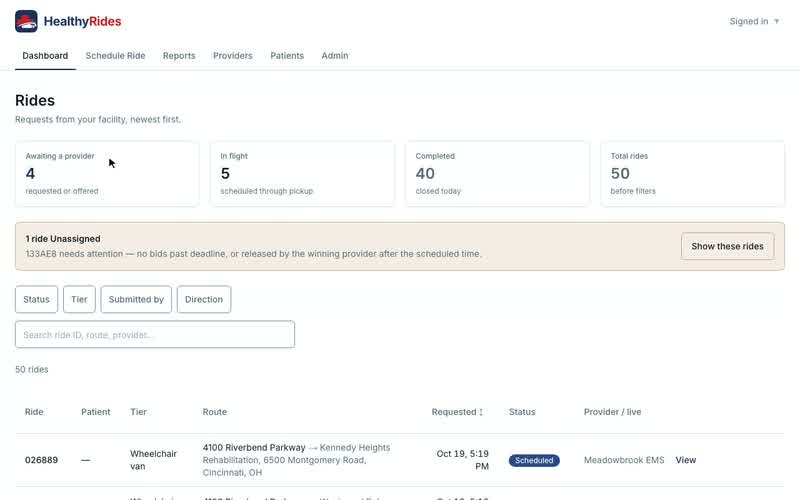
-
If a yellow banner appears, some rides are Unassigned. Select Show these rides to filter the list to rides still waiting for a provider.
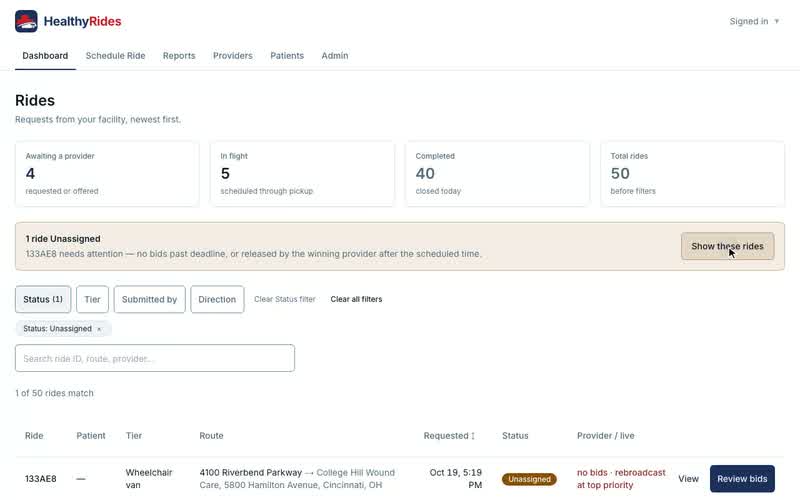
-
Use the filters to narrow the list. Pick values under Status, Tier and, if your organization has two or more facilities, Facility. Each option shows how many rides it holds.
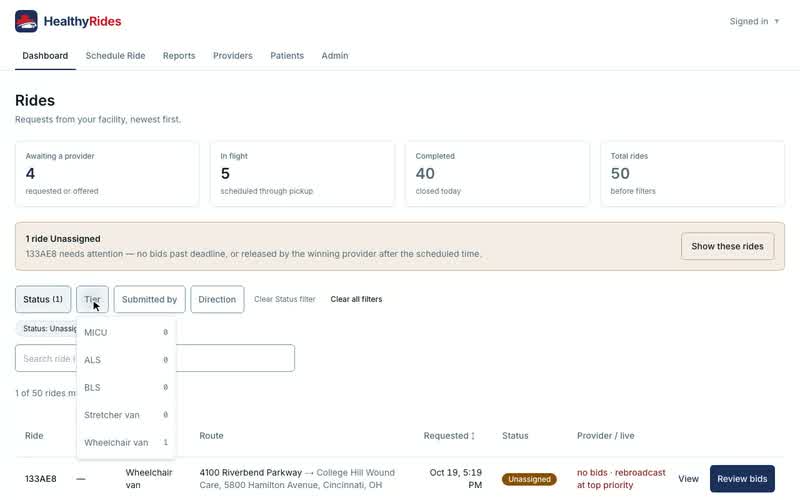
-
Check the note under the filters. It reads "12 rides" or "3 of 12 rides match".
-
Select a ride to open its detail. On a phone each ride is a card. On a wide screen it is a table row.
-
To sort by time, select the Requested column heading.
-
To start over, select Clear all filters.
-
To launch a will-call return when the patient is ready, select Launch return on its row. It takes one click, with no confirm. The return's pickup time becomes the moment you launch it, and the provider has 15 minutes to re-commit its ETA. See Ride detail for the same action with a confirm.
What the fields and statuses mean
- Awaiting a provider: rides that are open to bids and not yet picked.
- In flight: rides that have a winning provider, from Scheduled through pickup and the trip.
- Completed: rides that have reached Completed.
- Total rides: every ride in the list, before filters.
- Unassigned banner: a ride that had no bid picked by its pick deadline, or that its provider released after the scheduled time. The banner names up to three rides by reference, such as "A1B2C3", and counts the rest.
- Status: Available, Scheduled, In Progress, Completed or Cancelled. An Available ride past its deadline also shows as Unassigned.
- Provider / live: what is happening now. It reads "Awaiting a provider", the provider's name once the ride is Scheduled, "At pickup" or "En route" while it runs, and "Ride finished" or "No longer active" at the end. For an Unassigned ride it shows the bid count and why it needs you, such as "2 bids · 14m past deadline" or "rebroadcast at top priority".
- Requested: when the ride was asked for. A will-call return reads Will-call until it is launched, and then its launch time.
- Ride: a short reference such as A1B2C3. Rides are named by reference, never by patient.
Common questions
Why does an Unassigned ride still show bids?
Only a pick clears Unassigned. A bid placed after the deadline does not. Pick one of the bids to clear it. See Schedule Ride for how bids are picked.
Why can't I see a Facility filter?
The filter appears only when your organization has two or more facilities.
Do my filters survive a refresh?
Yes. They are kept in the page address, so you can copy the link to share the same view.